
Table of Contents
Game stuttering is one of the most annoying problems for people who play on low end PCs. The game may run fine for a few seconds and suddenly freeze for a moment. Then it continues again. That small pause completely ruins the experience, especially in fast games like shooters or racing titles.
Many players think stuttering only happens because their computer is weak. That is not always true. In many cases the problem is caused by bad settings, background programs, overheating, or outdated drivers. Fixing those issues can improve performance a lot, even on older hardware.
If your games feel choppy or pause randomly during gameplay, this guide will help you understand why it happens and how to fix it.
What Game Stuttering Actually Means
Stuttering happens when your computer cannot keep up with the game’s workload for a short moment. The game pauses briefly because the system is struggling to load something.
This is different from low FPS.
Low FPS means the game is always slow. Stuttering means the game runs normally and suddenly freezes for a moment.
Stuttering usually happens when the computer is trying to:
load new textures
process heavy graphics
access storage
handle too many background tasks
Low end systems are more likely to face this problem because they have limited resources.
The Most Common Causes of Game Stuttering
Before fixing the problem, it is important to know what usually causes it.
Some of the most common reasons include:
Not enough RAM
High graphics settings
Slow hard drive
Background programs using CPU or RAM
Overheating CPU or GPU
Outdated graphics drivers
Sometimes even a single program running in the background can cause noticeable stuttering during gameplay.
Lower Your Graphics Settings First
The first thing you should always try is lowering the graphics settings inside the game.
High graphics settings put heavy pressure on both the graphics card and the processor. If your system cannot handle those settings, the game will struggle to keep up.
Start by lowering the settings that affect performance the most.
Shadow quality
Texture quality
Anti aliasing
View distance
Reflections
These options can have a big impact on performance. Reducing them usually removes a lot of stuttering.
Many games also include a low graphics preset. If your system is weak, starting with the low preset is often the best choice.
Close Programs Running in the Background
A lot of players forget that their computer might be running many programs at the same time.
Browsers, messaging apps, launchers, and other software all use RAM and CPU power. On a low end PC, that extra usage can easily cause stuttering.
Before starting a game, open the task manager and check what programs are running.
Close things like:
web browsers
video players
download managers
unused software
Freeing system resources allows the game to run more smoothly.
More: 12 Important Things Every New Gamer Should Know Before Starting
Update Your Graphics Drivers
Graphics drivers are extremely important for gaming performance. They allow your graphics card to communicate properly with games and the operating system.
Old drivers sometimes cause performance problems, graphical bugs, or stuttering.
Installing the latest drivers from your graphics card manufacturer can improve stability and performance.
Many players notice smoother gameplay after updating drivers, especially when playing newer games.
Use Fullscreen Mode Instead of Borderless
Display mode can also affect performance.
Many games offer several options such as fullscreen, borderless windowed, or normal windowed mode.
Fullscreen mode usually provides the best performance because the game gets direct access to system resources.
Borderless mode keeps the desktop active in the background, which can sometimes reduce performance.
If you are experiencing stuttering, switching to fullscreen mode may help.
Make Sure Your PC Is Not Overheating
Overheating is another common reason for stuttering.
When your CPU or GPU becomes too hot, the system automatically slows down to protect the hardware. This is called thermal throttling.
When throttling happens, performance drops suddenly and the game may start stuttering.
To prevent overheating:
clean dust from your PC fans
make sure airflow is not blocked
avoid playing in very hot environments
use a cooling pad if you are on a laptop
Keeping your system cool allows the hardware to maintain stable performance.
Install Games on an SSD if Possible
Storage speed also affects gaming performance.
Traditional hard drives are slower when loading large game files. When a game needs to load textures or map data from a slow drive, it may cause small pauses.
Solid state drives are much faster and reduce loading delays.
If your system has an SSD, installing games on it can help reduce stuttering, especially in open world games.
Even an older low end system can benefit greatly from an SSD upgrade.
Limit Your Frame Rate
Sometimes unlimited frame rate can actually cause performance instability.
When a game constantly pushes your system to its maximum performance, it can create sudden spikes in workload. These spikes sometimes cause stuttering.
Limiting your frame rate to a stable number can make gameplay smoother.
For example, if your PC struggles to maintain 60 FPS, locking the frame rate at 40 or 45 may create a more stable experience.
Consistency often feels better than constantly fluctuating performance.
Increase Virtual Memory
Low end PCs often have limited RAM. When RAM runs out, the system starts using storage as temporary memory.
This is called virtual memory.
Increasing virtual memory can sometimes reduce stuttering when the system runs out of RAM during gameplay.
While virtual memory is slower than real RAM, it can still help stabilize performance on weaker machines.
More: How Much RAM Do You Need for Gaming in 2026? A Complete Guide for Smooth Gameplay
Keep Your System Clean
Over time, computers accumulate unnecessary files and programs.
Unused software, temporary files, and background services can slow down the system.
Regular system maintenance helps keep performance stable.
Removing unused programs and clearing temporary files can free up valuable resources.
Restarting your computer occasionally also helps clear memory usage.
When You Should Consider Upgrading Hardware
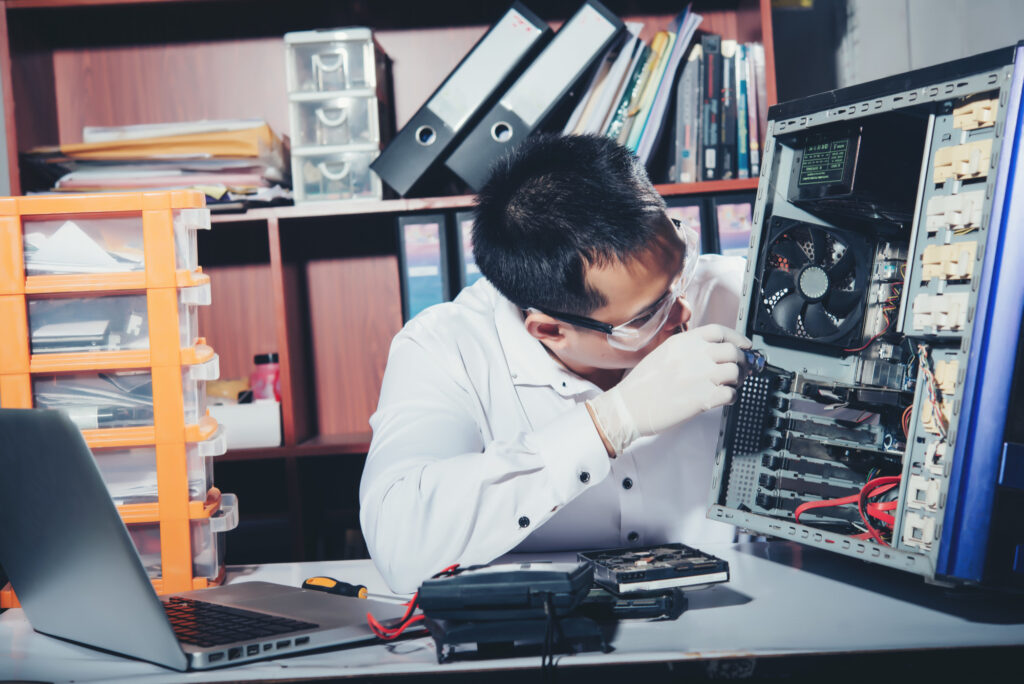
Sometimes optimization can only go so far. If your system is extremely outdated, hardware upgrades may be necessary.
The most helpful upgrades for gaming usually include:
adding more RAM
installing an SSD
upgrading the graphics card
Even a small upgrade can significantly improve performance.
However, it is always worth trying software optimization first before spending money.
Final Thoughts
Game stuttering on low end PCs can be frustrating, but it does not always mean your computer is useless for gaming.
In many cases, the problem comes from poor settings, background programs, overheating, or outdated drivers.
Lowering graphics settings, closing unnecessary software, updating drivers, and keeping the system clean can greatly improve performance.
Even older computers can run many games smoothly when they are properly optimized.
Learning how to manage your system and game settings can make a big difference. With the right adjustments, you can reduce stuttering and enjoy a much smoother gaming experience.