Table of Contents
Camera and Microphone are two of the most sensitive features on your device. Once an app gains access to them, it can potentially watch or listen without your knowledge. The scary part? Many apps request permissions even when they don’t need them. And some malicious apps silently run in the background capturing audio, recording video, or collecting private data.
This article walks you through how to check which apps are secretly using your camera and microphone on Android, iPhone, Windows, and Mac, plus how to protect yourself from future spying attempts. Everything is explained in a simple and practical way so you can take action immediately.
Why It’s Important to Monitor Camera and Microphone Access
Our devices are always close sometimes in our pockets, sometimes on our bedside table, or even right next to us during conversations. If an app is secretly using your microphone, it can easily listen to your private discussions. If your camera is being accessed without your consent, someone could be watching you without your knowledge.
Real Privacy Risks
When an app misuses camera or microphone access, the dangers include:
- Recorded conversations
- Captured images or video
- Leaked personal details
- Data sold to third-party companies
- Cyberstalking or surveillance
In short, it’s a huge invasion of privacy.
How Apps Misuse Camera/Microphone Access
Some apps may:
- Use the mic in the background even when not opened
- Keep permission active for “analytics”
- Trigger the camera secretly for face detection
- Monitor your environment for targeted advertising
Signs Your Camera or Microphone Is Being Used Without Your Permission
You should get suspicious if you notice:
- Orange or green dots turning on unexpectedly
- Random heating of your phone
- Faster battery usage
- Your phone screen flickering
- Strange noises during calls
- Unknown apps running in background
If any of these sound familiar, it’s time to check what’s happening.
More: Proven Methods to Recover Deleted Photos from Google Photos in 2025
How to Check Camera/Microphone Usage on Android
Android makes it easier than ever to see which apps are using these permissions.
Look for the Green and Orange Indicators
Android 12+ added privacy indicators:
- Green dot → Camera in use
- Orange dot → Microphone in use
If these appear when you’re not actively using an app like WhatsApp, Instagram, or the camera app, something is wrong.
Use the Privacy Dashboard
- Open Settings
- Tap Privacy
- Select Privacy Dashboard
This dashboard shows exactly which apps accessed your camera or mic in the last 24 hours.
View Detailed Camera and Microphone Activity
Tap:
- Camera
- Microphone
You’ll see a complete timeline, down to the minute.
Control Permissions App by App
- Go to Settings > Apps
- Pick the suspicious app
- Open Permissions
- Turn off Camera or Microphone
If an app doesn’t really need these permissions, disable them immediately.
Lock Both Permissions Entirely
If you feel unsafe:
- Go to Settings > Privacy
- Toggle Camera access or Microphone access OFF
This blocks all apps instantly until you enable access again.
How to Check Camera/Microphone Usage on iPhone
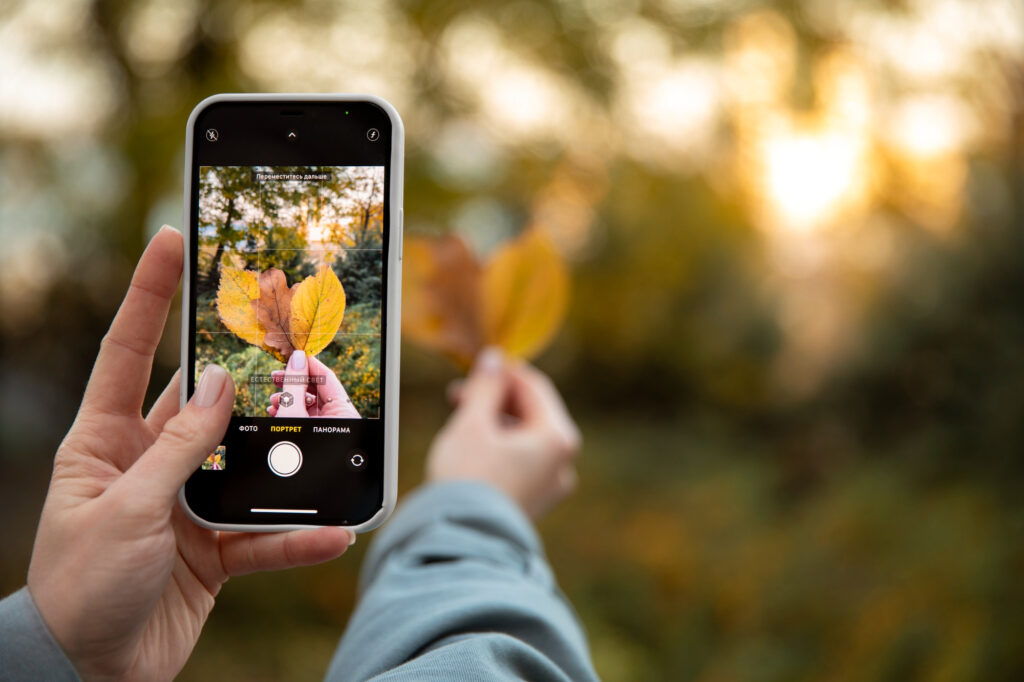
Apple has strong privacy tools, and using them will tell you exactly what’s happening.
Understand the Orange and Green Dots
On iOS:
- Orange dot → Microphone active
- Green dot → Camera active
You’ll see these in the top-right corner of the screen. If they appear when you’re not doing anything, check which app is responsible.
Use the App Privacy Report
- Open Settings
- Go to Privacy & Security
- Select App Privacy Report
This shows which apps accessed:
- Camera
- Microphone
- Location
- Contacts
- Photos
The report also displays recent timestamps.
Check Recent Camera/Mic Usage
Inside the report, scroll to:
- Camera Access
- Microphone Access
If you see an app using these at odd times, it’s likely misusing permissions.
Disable Permissions for Specific Apps
Go to:
Settings > Privacy & Security > Camera/Microphone
Disable access for apps that don’t need it.
Completely Lock Down Your Camera/Mic
If you want:
- Enable Screen Time
- Go to Content & Privacy Restrictions
- Turn off camera or block microphone entirely
Or use external tools like camera covers for extra safety.
How to Detect Camera/Microphone Use on Windows
Many people forget that spyware can target computers too not just phones.
Check Privacy Settings
- Open Settings
- Go to Privacy & Security
- Select Camera or Microphone
You’ll see a full list of apps with permission.
See Recent Activity
Windows 11 shows “Recent Activity,” which displays:
- The exact time an app used your mic/camera
- System or background processes that accessed it
Disable Access for Suspicious Apps
Toggle OFF access for:
- Unknown apps
- Browser extensions
- Random downloaded software
Use Task Manager to Spot Suspicious Processes
Press Ctrl + Shift + Esc
Check the Processes tab for:
- High CPU usage
- Unknown names
- Apps running without opening
These could be spyware.
Check Device Manager
- Search Device Manager
- Go to Cameras
If you see strange or duplicated camera drivers, it might be malware.
How to Detect Camera/Mic Usage on Mac
Macs have strong built-in hardware-level privacy protections, but you still need to check regularly.
Use macOS Indicator Lights
Mac webcams have hardware-tied light indicators.
If the light is ON, the camera is active always.
If it lights up without your action, check immediately.
Check Permissions
- Open System Settings
- Go to Privacy & Security
- Select Camera/Microphone
Disable any app you don’t trust.
Find Hidden Processes
Open Activity Monitor:
- Check CPU usage
- Sort by “Energy” or “Memory”
- Look for unknown apps or background tasks
Block Everything If Needed
You can:
- Disable permissions
- Use physical webcam covers
- Mute your mic
- Use apps like OverSight to monitor usage
Extra Ways to Detect Hidden Spyware

Look for Unusual Device Behavior
Spyware often causes:
- Rapid battery drain
- Overheating
- Slow performance
- Unknown pop-ups
- System lags
Use Anti-Spy Tools
Apps that help detect misuse:
These can identify hidden apps trying to use your mic or camera.
Monitor Your Network Activity
Spyware often sends your recordings to a server.
Apps like:
Last Resort: Factory Reset
If nothing works, completely reset your device.
This removes all hidden malware or spyware.
How to Protect Yourself in the Future
Only Install Trusted Apps
Avoid:
- Unknown developers
- Third-party APKs
- Cracked apps
These often contain spyware.
Keep Your Device Updated
Updates often fix security loopholes.
Use Camera Covers
Even if your camera is hacked, a cover stops everything.
Regularly Check App Permissions
Do a “privacy clean-up” every two weeks.
Avoid Sketchy Links
Many spyware apps are installed through phishing or malicious websites.
Conclusion
Your camera and microphone are windows into your personal life, and leaving them unprotected can expose you to serious privacy threats. Thankfully, all major devices now offer built-in tools to show which apps are accessing them. By checking permission dashboards, monitoring indicators, reviewing app activity, and removing suspicious apps, you stay in full control of your privacy. Small steps like using camera covers, cleaning up your permissions, and avoiding untrusted apps can keep you safe from hidden spying attempts.
Your privacy is in your hands so take a few minutes to secure your devices today.
FAQs
1. How do I know if an app is secretly using my microphone or camera?
Look for indicator lights (orange/green dots), use the privacy dashboard, or check recent access logs in your device settings.
2. Can apps spy on me without permission?
Not usually unless the app is malicious or installed from an unsafe source. Always install apps from official stores.
3. How can I stop apps from accessing my camera?
Go to your phone or computer’s privacy settings and disable camera access for apps that don’t need it.
4. Is it safe to leave camera permissions enabled?
Only if you fully trust the apps. Otherwise, disable them until needed.
5. Should I use a camera cover?
Yes, a physical cover is one of the simplest and safest ways to protect your privacy.