
Table of Contents
If your game stutters, drops frames during fights, or feels delayed when aiming, your settings are the problem. Most players copy random YouTube configurations without understanding what actually improves performance. That is why they stay stuck at low FPS.
This guide explains how to increase FPS on a low end PC properly. No myths. No fake boost tricks. Just practical adjustments that actually improve gaming performance on weaker systems.
Whether you play competitive shooters or open world games, the principles remain the same.
Why FPS Matters More Than Graphics
Frames per second directly affect reaction time and aim consistency. When FPS drops during gunfights, your input becomes inconsistent. That delay can cost you rank.
A stable 60 FPS is always better than unstable 90 FPS. Stability matters more than peak numbers.
Low end PCs usually struggle because of three limitations:
Weak GPU
Limited RAM
Older CPU
The goal is to reduce workload on these components without making the game unplayable.
Step One Adjust In Game Graphics Settings Properly
Most players lower everything blindly. That is inefficient.
Here are the settings that give the biggest FPS improvement.
Resolution
Lowering resolution has the biggest performance impact. If you play at 1920 by 1080 and struggle, try 1600 by 900 or 1280 by 720. Yes it looks slightly less sharp but you gain smoothness instantly.
Texture Quality
If your GPU has 2GB or 4GB VRAM, set textures to low or medium. High textures consume video memory and cause stuttering.
Shadows
Shadows are heavy on both CPU and GPU. Set shadow quality to low or disable advanced shadows entirely. This alone can increase FPS significantly in competitive shooters.
Anti Aliasing
Turn this off or set to the lowest option. It smooths edges but costs performance.
Post Processing Effects
Disable motion blur, film grain, depth of field, bloom, and chromatic aberration. These are cosmetic and reduce clarity during fights.
View Distance
Lowering view distance helps in open world games but in competitive shooters keep it at medium if enemies appear at long range.
These changes usually improve FPS by 20 to 40 percent on low end systems.
Step Two Optimize Windows for Gaming

Most people ignore system level optimization.
Close Background Apps
Press Ctrl Shift Esc and check Task Manager. Close browsers, launchers, and unnecessary startup apps. Chrome alone can eat RAM.
Disable Startup Programs
Open startup tab in Task Manager and disable heavy apps like auto updaters and game launchers.
Enable Game Mode
In Windows settings enable Game Mode. It prioritizes system resources for gaming.
Set Power Plan to High Performance
Go to Power Options and select High Performance. Balanced mode limits CPU performance on some systems.
Update GPU Drivers
Outdated drivers cause instability. Always install the latest stable driver from your GPU manufacturer.
These steps free system resources and reduce micro stutters.
Step Three Adjust GPU Control Panel Settings
Many players never touch GPU control panel settings.
For Nvidia users
Open Nvidia Control Panel
Set Power Management Mode to Prefer Maximum Performance
Turn off Image Sharpening
Set Texture Filtering Quality to High Performance
For AMD users
Set Radeon Anti Lag on
Disable Enhanced Sync if unstable
Use Performance profile
These changes prevent your GPU from downclocking during intense moments.
Step Four Reduce Input Lag for Competitive Advantage
High FPS alone is not enough. Input delay kills performance.
Turn on V Sync only if you notice your screen tearing during gameplay. Otherwise keep it off because it adds delay.
Switch to full screen mode rather than using windowed or borderless modes for better performance. Fullscreen gives better performance and lower latency.
Lower mouse polling rate from 1000 Hz to 500 Hz if CPU usage spikes. On very old CPUs this can help.
Disable unnecessary overlays like Discord overlay or recording software.
Step Five Optimize RAM Usage
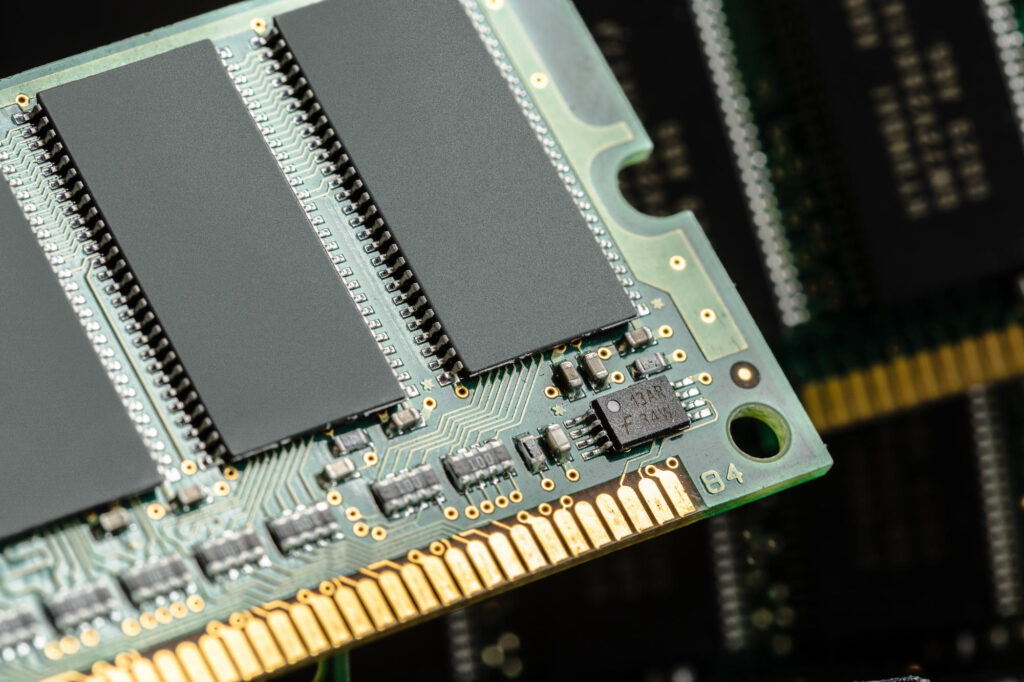
If you have 8GB RAM, you must manage memory carefully.
Close background applications before launching your game.
Increase virtual memory manually:
Open Advanced System Settings
Go to Performance Settings
Click Advanced
Set custom virtual memory size to 1.5 to 2 times your RAM
This prevents crashes and sudden FPS drops during heavy scenes.
Upgrading to 16GB RAM is one of the best investments if possible.
Step Six In Game Competitive Settings for Shooters
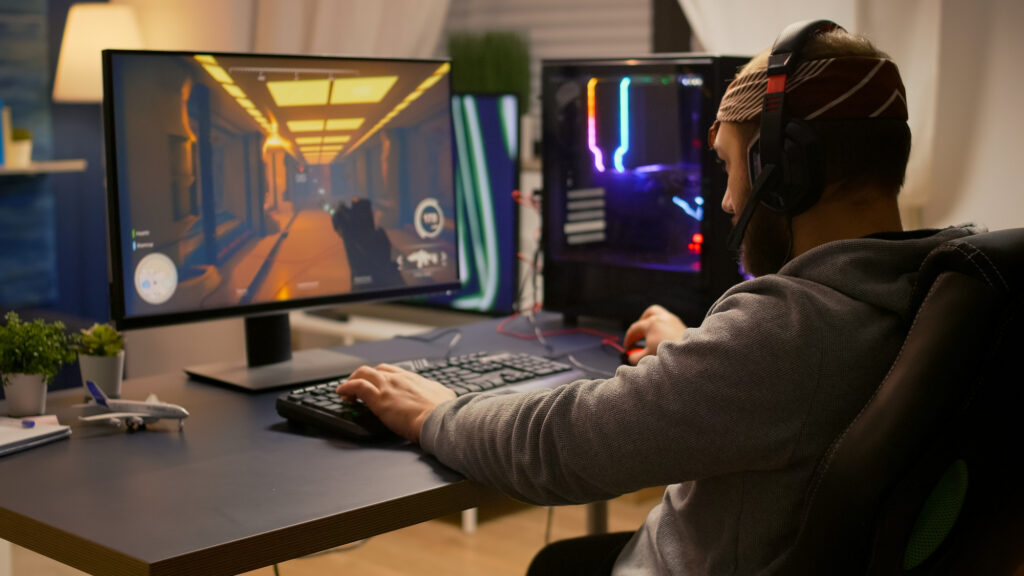
If you play FPS games like Valorant, CS2, Warzone, or Apex Legends, clarity matters more than visuals.
Use low shadow settings
Disable dynamic lighting
Increase brightness slightly for visibility
Use simple crosshair with high contrast color
Keep field of view balanced between 90 and 103 depending on game
High field of view increases awareness but reduces FPS slightly. Test what feels stable.
Common FPS Myths That Do Not Work
Clearing temp files daily does not magically increase FPS.
Third party FPS booster software usually runs in background and consumes more resources.
Registry cleaning tools do not improve gaming performance in modern systems.
Overclocking on low end hardware without proper cooling can cause instability and thermal throttling.
Focus on real optimizations, not internet tricks.
Best Budget Hardware Upgrades for Low End PC
If software optimization is not enough, small upgrades can change everything.
Upgrade from HDD to SSD. This reduces loading times and texture streaming stutter.
Add more RAM if you only have 8GB.
If your GPU is extremely outdated, even entry level modern GPUs provide huge improvements.
However, always optimize settings before spending money.
How to Test Your FPS Properly
Do not judge FPS by feeling alone.
Enable in game FPS counter or use MSI Afterburner to monitor performance.
Play the same map or mode for consistent comparison.
Check minimum FPS not just average FPS.
If your minimum FPS stays above 60 in fights, your system is stable enough for competitive play.
Final Recommended Settings for Most Low End PCs in 2026

Resolution 1280 by 720 or 1600 by 900
Textures Low
Shadows Low
Anti Aliasing Off
Post Processing Off
Fullscreen Mode
High Performance Power Plan
This setup balances clarity and performance for competitive advantage.
Conclusion
You do not need an expensive gaming PC to rank up. You need stable FPS, low input lag, and clear visuals.
Most players stay stuck because they chase graphics instead of performance. Competitive gaming rewards consistency. Smooth gameplay improves aim, reaction time, and confidence.
Apply these optimizations step by step. Test changes individually. Focus on stability instead of maximum numbers.
