
Table of Contents
Your smartphone holds your private messages, passwords, photos, banking apps, location, and almost everything about your daily life. That’s exactly why spying apps and tracking tools have become more common in 2025. They run silently, hide behind system processes, and send your data to someone without you knowing.
If you’re wondering how to check if someone is spying on your phone, this guide will walk you through all the signs, tools, checks, and methods to confirm whether your device is being monitored and how to stop it instantly.
What Does It Actually Mean When Someone Is Spying on Your Phone?
When someone is spying on your phone, it means they have installed something (or enabled something) that lets them:
- Read your messages
- Check your call logs
- Track your live location
- Access your camera or microphone
- See your photos
- Record your screen
- Monitor your social apps
- Read your WhatsApp, Instagram, or Messenger chats
This spying can happen through:
- Spy apps
- Hidden malware
- Tracking profiles
- Linked devices
- iCloud/Google account access
- Backup syncing
- Keyloggers
- Screen-sharing tools
This is why learning how to check if someone is spying on your phone is more important in 2025 than ever before.
Common Signs Someone Is Spying on Your Phone

Below are the strongest signs that indicate your phone might be compromised.
1. Battery Drains Faster Than Usual
Spy apps constantly run in the background, using CPU, network, and sensors. If your phone suddenly loses battery quickly, it’s not normal.
Look for signs like:
- Battery drops while phone is idle
- Phone warms up during standby
- Battery usage graph shows unusual apps
This is often the first clue you need when checking how to check if someone is spying on your phone.
2. Phone Overheating (Even When You’re Not Using It)
Overheating without gaming or video calls is a major red flag.
Spyware constantly uses:
- GPS
- Internet
- Storage
- System resources
This causes your phone to become unusually warm.
3. Data Usage Suddenly Spikes
Spy apps send collected information to someone else which requires data.
Check if your mobile data or Wi-Fi usage increased without explanation.
If you see apps using data you never opened, that’s a strong sign.
4. Random Shutdowns & Restarts
Most spyware affects system stability.
Unexpected restarts happen when:
- Spy apps crash
- Malware modifies system files
- Someone tries to access your device remotely
This is one of the clearest indicators when learning how to check if someone is spying on your phone.
5. Strange Pop-Ups, Glitches, or Screen Behavior
If you notice:
- Apps opening on their own
- Screen waking up randomly
- Settings changing automatically
- Phone lags during simple tasks
…it could be caused by hidden spyware.
How to Check If Someone Is Spying on Your Phone (Android & iPhone)
This section gives you real, practical methods to detect spying apps not generic advice.
1. Check Installed Apps (Spy Apps Hide in Disguise)
Most spy apps hide under names like:
- System Update Service
- Device Service
- Settings Helper
- SIM Toolkit Pro
- com.android.system
How to check (Android):
Go to:
Settings → Apps → See All Apps
Sort by:
Recently Installed
Look for apps you don’t remember installing.
How to check (iPhone):
Go to:
Settings → General → iPhone Storage
Look for apps with:
- Blank icons
- No app size
- Generic names
If you see something suspicious, it’s worth investigating further.
2. Check Running Services & Background Processes
Spy apps don’t just install they run silently.
Android:
Enable developer mode:
Settings → About Phone → Tap Build Number 7 times
Then:
Developer Options → Running Services
Look for apps running for hours without reason.
iPhone:
iPhones don’t show background processes, but you can see background refresh apps.
Go to:
Settings → General → Background App Refresh
Disable apps that shouldn’t be running.
3. Check Data Usage History
Spy apps need internet. They must send out data.
Android:
Settings → Network → Data Usage → App Data Usage
Look for:
- System apps consuming data
- Recently used apps that shouldn’t use any data
iPhone:
Settings → Cellular → Cellular Data Usage
Scroll down to check per-app usage.
4. Check Camera & Microphone Access Logs
If someone is spying, they might be:
- Recording audio
- Taking background photos
- Activating your camera
More: How to Check Which Apps Are Secretly Using Your Camera and Microphone in 2025
Android (Permission Manager):
Settings → Privacy → Permission Manager →
Camera / Microphone
Check which apps accessed these recently.
iPhone:
You will see orange (mic) or green (camera) dots whenever apps access them.
Go to:
Settings → Privacy → App Privacy Report
5. Check Battery Usage Report
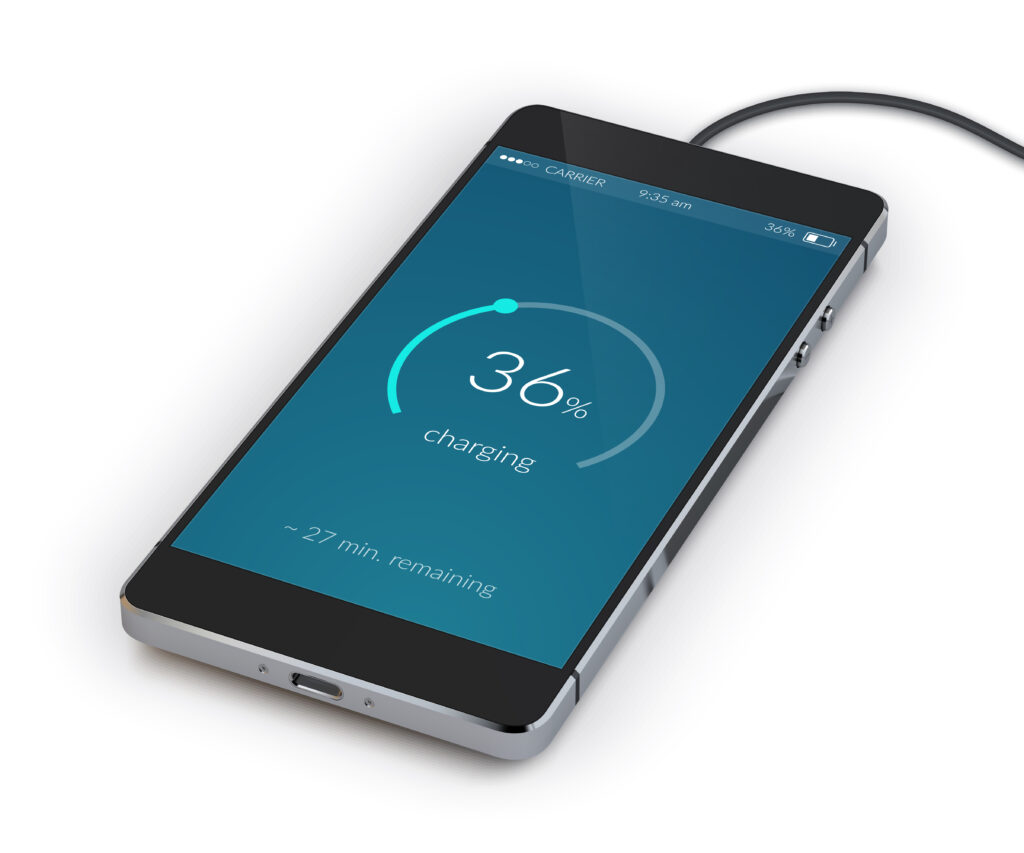
Battery stats show which apps are draining the most power.
Android:
Settings → Battery → Battery Usage
iPhone:
Settings → Battery → Last 24 Hours
Look for apps using battery in the background nonstop.
6. Check App Permissions Manually
Spy apps need permissions like:
- Location
- Camera
- Microphone
- Contacts
- SMS
- Storage
- Accessibility
Remove permissions from apps that don’t need them.
7. Check for Unknown App Stores / Unknown Sources Enabled (Android)
Spy apps are often installed through unknown sources.
Go to:
Settings → Security → Install Unknown Apps
If any app has permission enabled without reason, that’s suspicious.
8. Check VPN Profiles You Didn’t Add
Hackers use VPN or device management profiles to reroute your traffic.
Android:
Settings → VPN
iPhone:
Settings → General → VPN & Device Management
If you see a configuration you didn’t install, remove it immediately.
9. Check Screen Mirroring You Didn’t Enable
Someone might be mirroring your screen remotely.
Android:
Look for:
Smart View / Cast / Nearby Share enabled
iPhone:
Open Control Center → Screen Mirroring
If it shows a connected device, it’s a huge red flag.
Advanced Ways to Detect Phone Spying
If the earlier checks didn’t confirm anything but you still feel suspicious, try these advanced methods.
1. Use Code Checks (#21#, #62#)
Dialing these codes can show if your calls/messages are being forwarded.
- *#21#: Check forwarding status
- *#62#: Check who receives your diverted data
If you see a number you don’t recognize, someone may be spying.
2. Check Unknown Devices Connected to Google / iCloud
Go to your account settings:
Google (Android):
Google Account → Security → Your Devices
iCloud (iPhone):
Settings → Apple ID → Devices
If you see a device you don’t recognize, remove it immediately.
3. Check WhatsApp, Instagram, or Telegram Linked Devices
WhatsApp:
Settings → Linked Devices
Instagram:
Settings → Login Activity
Telegram:
Devices → Active Sessions
If you see a login from another city or device someone is reading your chats.
4. Check Browser Extensions
Spy extensions on Chrome or Safari can monitor:
- Passwords
- Search history
- Logins
Remove anything you don’t trust.
How Hackers Install Spyware on Your Phone
Understanding this helps you stay protected.
Hackers may install spyware through:
- Physical access to your phone
- Fake apps
- Malicious links
- Fake WhatsApp / Instagram logins
- Public Wi-Fi attacks
- Unknown charging cables
- Third-party APK files
Sometimes even people close to you (partner, friend, sibling) install spyware when you leave your phone unlocked.
How to Remove Spy Apps and Stop Someone From Spying on You
Follow these steps immediately if you suspect anything.
1. Delete Suspicious Apps
Uninstall anything unfamiliar.
2. Remove Unknown Profiles or Certificates (iPhone)
Go to:
Settings → General → VPN & Device Management
Delete unknown certificates.
3. Change All Passwords
Start with:
- Apple ID
- Banking apps
4. Disable Unknown Backup Services
Some spyware uploads your data using secret backups.
Turn off:
- Google Drive backup (unknown apps)
- iCloud backup for apps you don’t trust
5. Secure Your Lock Screen
Use strong protection:
- 6-digit PIN
- Biometric lock
- Never use 1234, 1111, 0000, or your birthday
When You Should Factory Reset Your Phone
If you STILL feel like someone is spying on your phone after all checks, the best solution is:
Factory Reset
This removes:
- Spy apps
- Hidden profiles
- Malware
- Tracking tools
And gives you a clean start.
How to Protect Your Phone From Spying in the Future
- Never leave your phone unlocked
- Avoid installing random APK files
- Don’t root/jailbreak your device
- Don’t click unknown links
- Use a strong lock screen
- Keep your software updated
- Regularly check permissions and background activity
Practicing these steps will prevent ANYONE from gaining access.
Conclusion
Learning how to check if someone is spying on your phone is essential in 2025. Spy apps are becoming more advanced, more silent, and harder to detect but with the right steps, you can easily identify unusual behavior, find hidden apps, remove unknown profiles, and secure your device.
By checking permissions, monitoring battery usage, reviewing data logs, and verifying linked devices, you can protect your privacy and stop anyone from secretly accessing your phone.
Your phone is your private space protect it.
FAQs
1. Can someone spy on my phone without touching it?
Yes, through phishing links, fake logins, or account syncing but physical access makes it easier.
2. Is my phone hacked if it’s overheating?
Not always, but unexplained overheating is a common symptom of spyware.
3. Will a factory reset remove all spyware?
Yes. A full reset wipes all malicious apps and hidden profiles.
4. Can spyware see my WhatsApp messages?
Yes. Advanced spyware can read chats, record calls, and even track your keystrokes.
5. How do I know if someone linked their device to my WhatsApp or Instagram?
Check Linked Devices (WhatsApp) and Login Activity (Instagram). Remove unknown sessions immediately.