Table of Contents
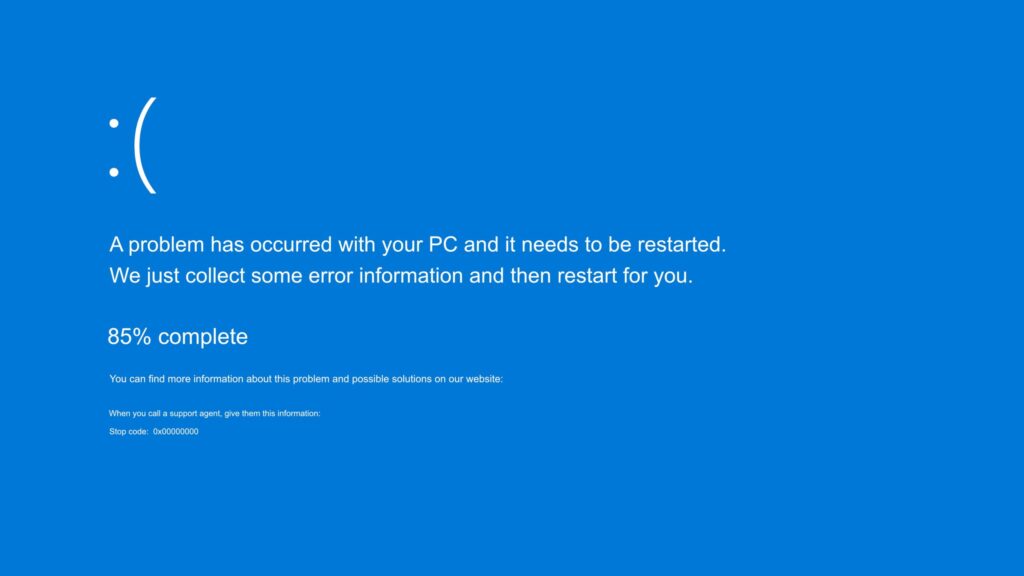
The Blue Screen of Death, also called BSOD, is one of the most annoying problems Windows users face. You’re working, gaming, watching something, or just browsing and suddenly, your entire screen turns blue with a scary error message. Your computer shuts down, restarts, and sometimes gets stuck in a loop. It feels like something is seriously broken.
But here’s the truth:
Most Blue Screen of Death problems can be fixed easily, even if you’re not a tech expert.
You just need the right steps and that’s exactly what this full guide gives you.
What Causes the Blue Screen of Death?
Before fixing the problem, it helps to know why Blue Screen of Death happens. Windows shows a “blue screen” when something is wrong at a system level basically when your computer detects an error it can’t recover from.
Here are the most common causes:
- Corrupted system files
- Faulty or outdated drivers
- Overclocking (manual or automatic)
- Malware or rootkits
- Overheating CPU or GPU
- Bad Windows updates
- Failing hard drive or SSD
- Faulty RAM
- Registry corruption
- Missing or corrupted boot files
- Power supply issues
Most of these can be fixed without replacing any hardware.
Now let’s jump into the solutions.
1. Restart Your PC Properly (The First Basic Fix)
After a Blue Screen of Death, many people hold the power button immediately. But forcing a shutdown can make corruption worse.
Here’s what to do instead:
- Wait for Windows to restart on its own.
- If it does not restart, press the power button for 5 seconds.
- Boot normally and wait for Windows to load.
Often, a one-time BSOD is caused by a temporary glitch that resolves after reboot.
2. Disconnect All External Devices
External devices can overload or confuse drivers, leading to Blue Screen of Death errors. Anything connected to your PC can trigger it.
Unplug these devices:
- USB drives
- External hard drives
- Printers
- Controllers
- Webcams
- USB hubs
- Wi-Fi or Bluetooth adapters
Restart your PC again.
If the BSOD disappears, the issue came from a driver conflict.
More: How to Fix Phone Battery Draining Fast (2025 Effective Solutions)
3. Boot Into Safe Mode (The Best Way to Fix BSOD Safely)
Safe Mode loads Windows with only essential drivers. This helps you diagnose the problem safely without the system crashing again.
How to enter Safe Mode:
- Restart your PC.
- As soon as Windows begins loading, hold the power button to force shutdown.
- Repeat this three times.
- Windows will show Automatic Repair.
- Select Advanced Options → Troubleshoot.
- Go to Startup Settings → click Restart.
- Press 4 or F4 to start Safe Mode.
Now Windows will start in a simplified state perfect for fixing BSOD issues.
4. Remove Recently Installed Apps or Windows Updates
If your PC started crashing after installing new software, drivers, or updates, those are likely the cause.
Uninstall new apps:
- Press Win + R, type
appwiz.cpl - Sort by Installed On
- Remove apps installed right before the crashes began
Remove recent updates:
- Go to Settings → Windows Update
- Choose Update History
- Select Uninstall Updates
Restart once done.
5. Update or Roll Back Device Drivers
Driver issues are the number one cause of the Blue Screen of Death.
You must check the following key drivers:
- GPU (NVIDIA / AMD / Intel)
- Network adapter
- Sound driver
- Storage / SATA / NVMe drivers
- USB controller
- Chipset driver
To update drivers:
- Open Device Manager
- Right-click a device
- Select Update Driver
To roll back a driver:
If BSOD began after a new update:
- Right-click the device
- Click Properties
- Select Driver
- Choose Roll Back Driver
This often fixes Blue Screen of Death instantly.
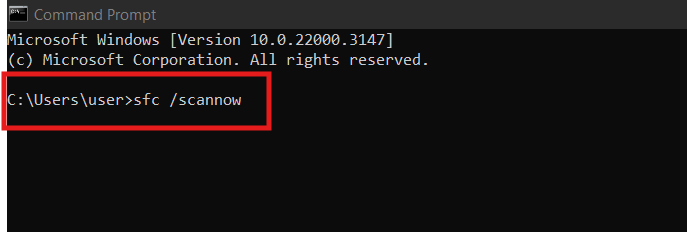
6. Run System File Checker (Fix Corrupted Windows Files)
Windows system files can get corrupted due to shutdowns, viruses, or incomplete updates.
To repair them:
- Open Command Prompt as Administrator
- Type the command:
sfc /scannow - Wait for the scan to complete
- Restart your computer
SFC will automatically replace corrupted files.
7. Repair Windows Image With DISM
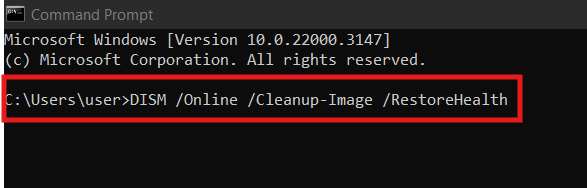
If deeper system components are damaged, use the DISM tool.
Run this command:
DISM /Online /Cleanup-Image /RestoreHealth
This takes longer but fixes heavy corruption that causes repeated BSOD loops.
8. Scan for Viruses, Malware, and Rootkits

Some malware intentionally crashes Windows to disable antivirus tools. Rootkit malware is especially known for causing Blue Screen of Death issues.
Use:
- Windows Security (Full Scan)
- Malwarebytes
- HitmanPro
- Kaspersky Removal Tool
If the Blue Screen of Death disappears after removing malware, the infection was causing the crash.
More: How to Install Windows 11 on Unsupported Devices Complete 2025 Guide
9. Check RAM for Problems (Major BSOD Cause)
Faulty RAM can instantly crash Windows.
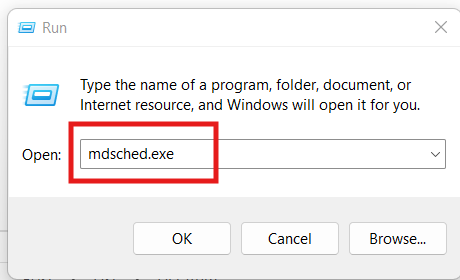
How to test RAM:
- Press Win + R
- Type
mdsched.exe - Choose Restart now and check for problems
If your RAM is faulty, the PC might crash during the test or show errors.
Extra tip:
If you have 2 RAM sticks, remove one and test individually. Sometimes only one module is bad.
10. Check Hard Drive for Bad Sectors
A failing hard drive or SSD can trigger BSOD errors repeatedly.
Run CHKDSK to scan for errors:
Open CMD as admin and type:
chkdsk /f /r
Press Y to run the scan after restart.
If your hard drive is failing, back up your data ASAP.
11. Fix Overheating (A Silent BSOD Trigger)
If your CPU or GPU overheats beyond safe limits, Windows shuts down instantly with a BSOD to protect hardware.
Check temperatures using tools like:
- HWMonitor
- CoreTemp
- MSI Afterburner
Fix overheating by:
- Cleaning dust from fans
- Improving airflow
- Replacing old thermal paste
- Reducing background programs
- Using a cooling pad (for laptops)
Keep your CPU below 80°C for stable performance.
12. Disable Overclocking (If You Use It or Not)
Hidden overclocking features in BIOS or GPU software can cause BSOD.
Disable overclocking in:
- BIOS settings
- MSI Afterburner
- Radeon Software
- Intel XTU
- Ryzen Master
Choose Reset to Default to undo all overclock changes.
13. Perform a System Restore
If BSOD started recently, restoring your system to an earlier date can completely fix the issue.
Steps:
- Search “System Restore”
- Choose a restore point from before the issue
- Click Restore
- Restart your PC
It doesn’t affect your files only system configurations.
14. Startup Repair (Fix Boot-Level BSOD)
This tool repairs corrupted boot files that cause BSOD on startup.
How to use it:
- Go to Advanced Startup
- Select Troubleshoot
- Click Startup Repair
Windows will attempt to fix startup issues automatically.
15. Reset Windows Without Losing Files
This is one of the most effective ways to fix stubborn BSOD errors.
Steps:
- Go to Settings → System → Recovery
- Select Reset this PC
- Choose Keep My Files
- Follow the instructions
This reinstalls Windows, removes apps, but keeps personal data safe.
16. Final Solution: Clean Install Windows
If nothing works, a clean installation guarantees a fresh start.
Use:
- Windows 11 USB Tool
- Microsoft Media Creation Tool
- Windows ISO file
Format your drive and install Windows fresh.
This eliminates all corruption, bugs, and malware for a clean, stable PC.
Extra Tips to Prevent Future BSOD Errors
Here are some important long-term tips:
- Keep Windows updated
- Update GPU drivers regularly
- Never force shutdown your PC
- Avoid installing unknown software
- Don’t use random driver-update tools
- Use a good power supply
- Avoid overheating
- Remove bloatware you don’t need
- Don’t overload your storage keep 20GB free
Following these habits guarantees a smooth, crash-free experience.
More: How to Check If Someone Is Spying on Your Phone 2025 Guide
Conclusion
Fixing the Blue Screen of Death may seem overwhelming, but with the right steps, you can solve it faster than you think. Whether it’s a corrupted file, faulty driver, overheating system, or failing hardware, this guide covers everything required to fix BSOD errors permanently.
Follow these fixes one by one, and you’ll easily identify the cause and restore your PC’s stability. Once everything is repaired, your computer will run smoother, faster, and more reliably than before.
FAQs
1. What is the main cause of Blue Screen of Death?
Most BSODs are caused by corrupted system files or faulty drivers.
2. Can Blue Screen of Death fix itself?
Sometimes yes if triggered by a temporary driver error. But repeating BSODs need fixing.
3. Can overheating cause BSOD?
Absolutely high CPU or GPU temperatures can force Windows to crash.
4. Does resetting Windows fix BSOD?
Yes, it fixes most software-related causes by removing corrupted files and drivers.
5. Can malware cause Blue Screen of Death?
Yes, malware (especially rootkits) can corrupt system files and cause BSOD crashes.