A blurry camera can instantly ruin a good moment. When your photos suddenly lose sharpness, look hazy, or refuse to focus, it becomes frustrating. The good part is that most camera issues happen because of simple problems that you can solve within minutes. Whether your lens is dirty, the camera app is malfunctioning, the focus motor is stuck, or something is interfering with the camera settings, you can fix blurry camera on Android with the step by step methods below.
Table of Contents
1. Clean the Lens the Right Way
Most people do not realize how quickly a phone camera lens gathers fingerprints, sweat, dust, and oil. This is one of the main reasons you need to fix blurry camera on Android.
How to clean the lens safely
- Use a microfiber cloth
- Breathe lightly on the lens for slight moisture
- Wipe in small circles
- Avoid using clothes or tissues because they leave scratches
- Clean every camera lens if your phone has multiple cameras
If the lens has stubborn oil or dirt, use a tiny drop of lens cleaning liquid or 70 percent isopropyl alcohol. A clean lens instantly improves image sharpness.
2. Remove Lens Protectors and Phone Covers
Cheap lens protectors can soften images and reduce clarity. Some phone covers sit too close to the camera lens and block part of the sensor.
Remove these items and take a quick picture. If the image becomes clear, this was the reason you needed to fix blurry camera on Android.
3. Restart the Camera App
The camera app often gets stuck, especially if it has been running for a long time.
Steps:
- Close the camera app
- Remove it from Recent Apps
- Open it again
If the blur remains, restart your phone. This refreshes the camera system and can fix blurry camera on Android instantly.
More: How to Reset Phone Without Losing Data in 2025
4. Tap to Focus
If the autofocus is confused, the picture will always be blurry.
Do this:
- Point your camera at the subject
- Tap on the screen
- Hold your finger for better focus
This forces the camera to refocus and often fixes the issue on the spot.
5. Clear Camera App Cache
App cache can cause bugs, slow focusing, and blurry images.
Steps:
Settings
Apps
Camera
Storage
Clear Cache
Do not clear data unless needed because it resets app settings. Clearing cache alone can fix blurry camera on Android without losing anything.
6. Change Camera Modes
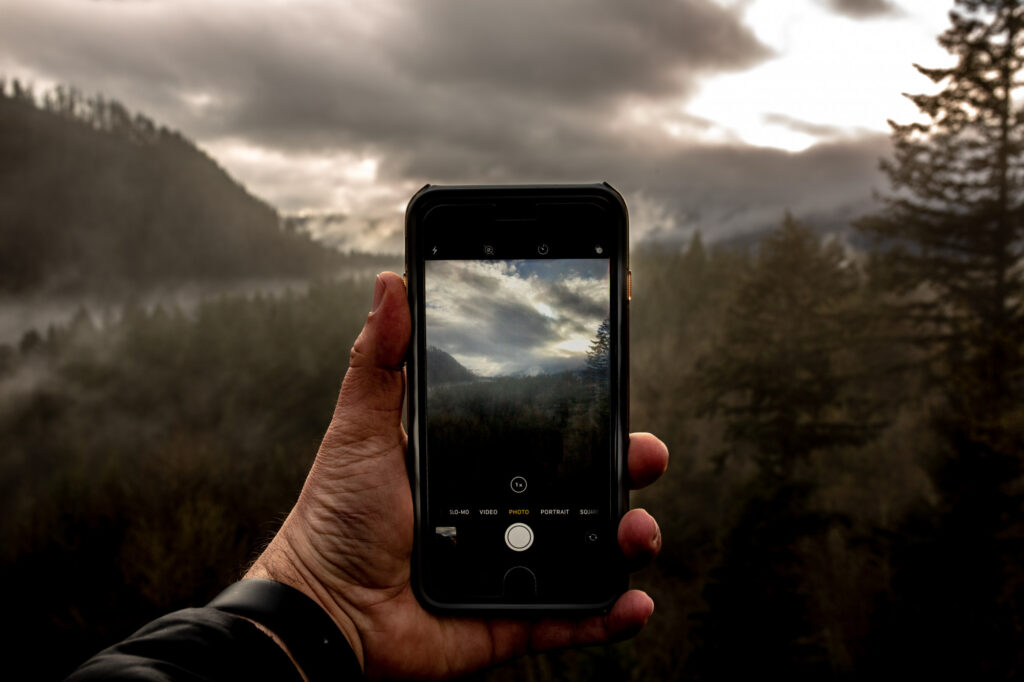
Switching camera modes resets the lens focus.
Try switching:
- Photo to Video
- Photo to Portrait
- Photo to Night
- Zoom levels like 1x to 2x to wide-angle
Sometimes the lens motor gets stuck, and switching modes pushes it back to normal.
7. Turn Off Beauty Mode and Filters
Beauty filters reduce sharpness to soften skin. This makes your camera look blurry even when the lens is fine.
Turn off:
- Beauty mode
- AI smoothing
- Skin filters
- Face enhancement
- Built-in filters
You will notice sharper and more natural photos immediately.
8. Improve Lighting Conditions
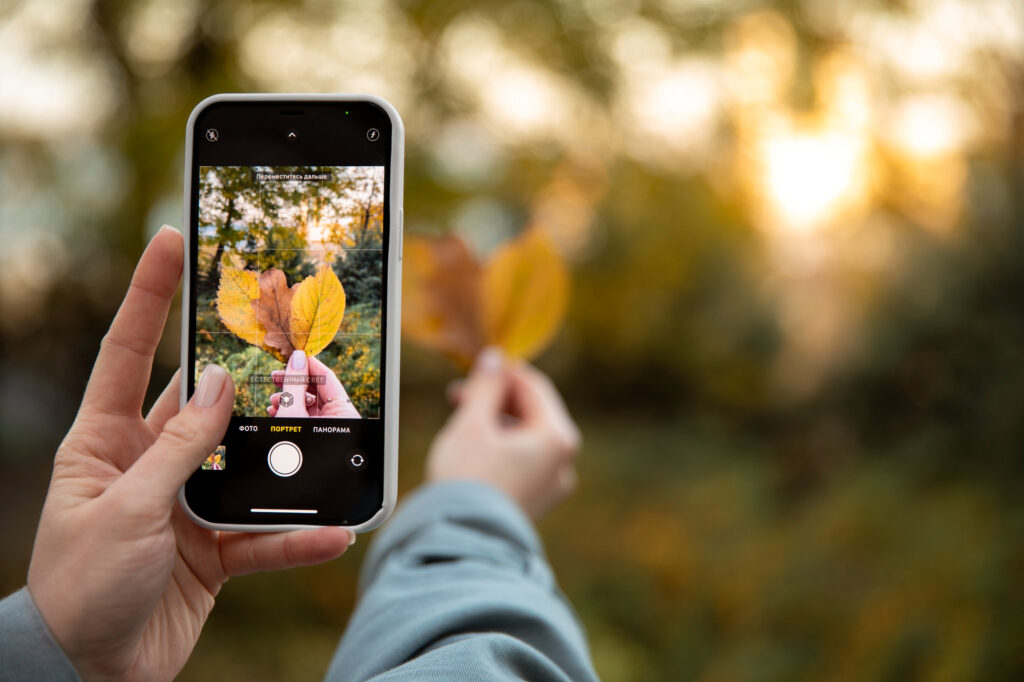
Android cameras perform poorly in low light because they slow the shutter speed. This causes motion blur.
To fix blurry camera on Android in low light:
- Turn on flash
- Add more light in the room
- Hold the phone steady for a second longer
- Use Night Mode
If your camera works fine during the day but blurry at night, it is a lighting issue, not a camera fault.
9. Update the Camera App
Outdated camera apps create software bugs.
Go to Play Store and update:
- Your Google Camera (or brand camera app)
- Google services
- System software
Updates often include camera improvements that fix blurry camera on Android.
More: How to Fix Phone Battery Draining Fast (2025 Effective Solutions)
10. Reset Camera Settings
If you changed camera settings unknowingly, this can affect clarity.
Steps:
Open camera
Open settings
Tap Reset to default
Resetting removes wrong configurations and restores the camera to factory sharpness.
11. Test Camera in Other Apps
Open the camera in apps like Instagram, Snapchat, WhatsApp, or TikTok.
If those apps show clear images but your default camera is blurry, then the issue is with the main camera app only. Resetting or updating it will fix blurry camera on Android.
If the blur appears everywhere, the problem is deeper.
12. Remove Problematic Apps
Some apps interfere with the camera system, especially:
- Antivirus apps
- Phone cleaners
- Camera mods
- Heavy editing apps
- Apps that access camera permissions in the background
Try uninstalling recently installed apps and check your camera again.
13. Enter Safe Mode
Safe mode disables all third party apps. This is a powerful way to diagnose issues.
Steps vary by phone, but usually:
Hold the power button
Long press Power Off
Tap Safe Mode
Open the camera inside Safe Mode.
If the photos become clear, then another app was the reason you needed to fix blurry camera on Android.
14. Check for Moisture in the Camera
Moisture inside the lens causes foggy, cloudy, or soft photos.
Signs:
- Hazy ring inside the camera
- Foggy photos
- Condensation after rain or humidity
Fix:
- Keep your phone in a dry area
- Use silica gel packets
- Place near a fan
- Avoid blow dryers because heat damages lenses
Once the moisture dries, the camera usually returns to normal.
15. Check for Physical Damage
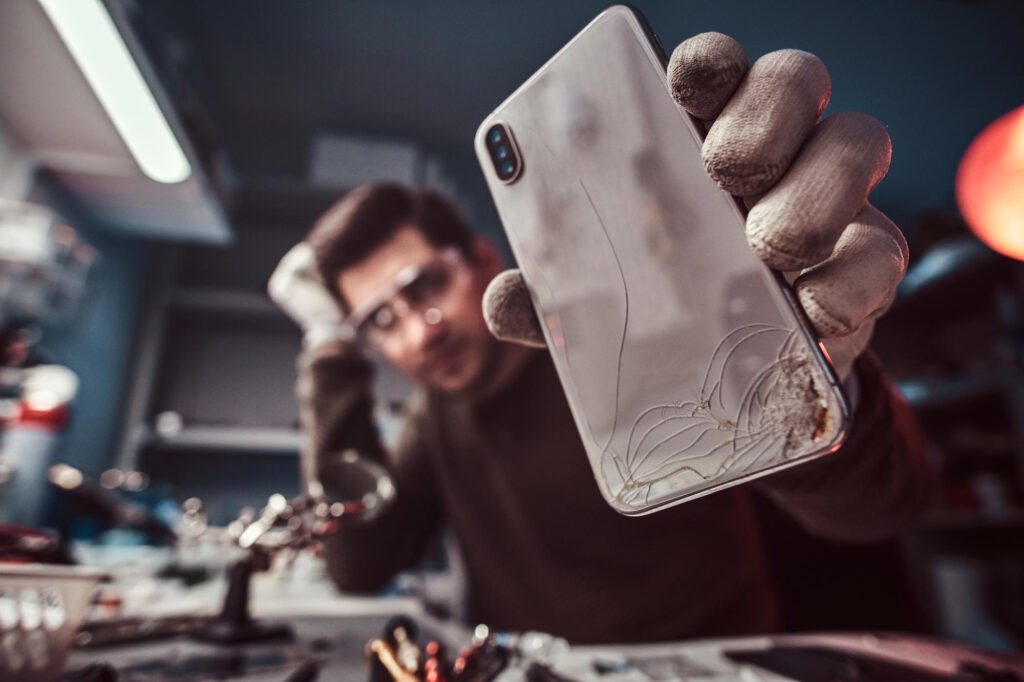
If your phone has been dropped, the camera stabilizer or focus motor may be damaged.
Symptoms:
- Loud clicking noise
- Constant blur
- Camera shaking
- Focus not working in any mode
If you notice these signs, a repair might be required.
16. Replace the Camera Module
If none of the fixes work, your camera module may be faulty.
A replacement is usually cheap, especially for mid range Android phones. Brands like Samsung, Xiaomi, Oppo, Vivo, Realme, and Motorola offer low cost camera module replacement.
A technician can quickly replace the part and fix blurry camera on Android permanently.
Conclusion
Fixing a blurry camera on Android is usually simple. Most problems come from dirty lenses, stuck focus, app glitches, or poor lighting. Cleaning the lens, removing lens protectors, restarting the camera app, clearing cache, and turning off beauty filters solve the problem for most users.
More advanced steps like Safe Mode testing, resetting camera settings, removing interfering apps, or drying moisture can also fix blurry camera on Android. Only a small number of cases require hardware replacement.
By following these steps slowly and carefully, you can bring back sharp, clear, and high quality photos on your Android device.
FAQs
1. Why is my Android camera suddenly blurry?
Dirty lenses, focus errors, low light, and app bugs are the most common reasons for blurry photos. Cleaning the lens usually solves it.
2. How do I fix autofocus not working?
Tap to focus, clear cache, restart the camera app, or switch camera modes. These actions help reset the autofocus system.
3. Can a lens protector cause blur?
Yes. Cheap or scratched lens protectors soften images. Removing them often fixes the problem instantly.
4. Why is my night photos blurry?
Android cameras slow down in low light which causes hand shake. Use flash, add more light, or activate Night Mode.
5. How do I know if my camera is damaged?
If every app shows blur, the camera makes clicking sounds, or the focus never locks, you may need a camera module replacement.