Table of Contents
Recover deleted photos from Google Photos easily with the right steps. Accidentally deleting pictures is something that happens to almost everyone. Maybe you cleared space too quickly or tapped the wrong option. Whatever the reason, the good news is that Google Photos offers several ways to get your deleted pictures back if you act on time.
This guide will walk you through every method that actually works. You’ll learn how to restore photos from the Trash, what to do if they’re not there, how to contact support, and how to prevent future loss.
Let’s get straight into it.
How Google Photos Handles Deleted Photos
When you delete a photo in Google Photos, it doesn’t vanish instantly. Google moves it to a folder called Trash (or Bin, depending on your language settings).
- Photos in Trash stay there for 60 days before being permanently deleted.
- After 60 days, the deleted photos are automatically removed and can’t be restored through normal options.
- If the photo wasn’t backed up to Google’s cloud (for example, you deleted it from your phone’s storage before it synced), it might only remain recoverable for 30 days.
So, if your deleted photos are less than 60 days old, there’s a very high chance you can get them back.
Step 1: Recover Deleted Photos from Google Photos Trash
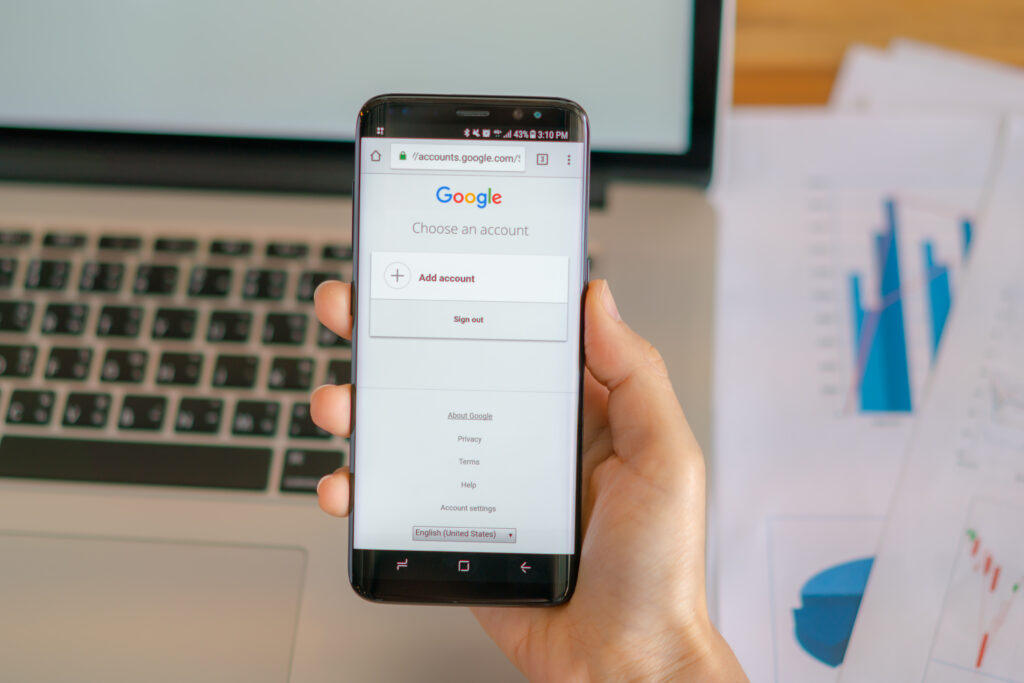
On Android or iPhone
- Open the Google Photos app.
- Tap Library at the bottom of the screen.
- Tap Trash or Bin.
- Find the photo or video you deleted. You can press and hold to select multiple files.
- Tap Restore.
Once you restore the file, it will return to your main Google Photos library and appear again in albums where it originally existed.
On a Computer (Web Version)
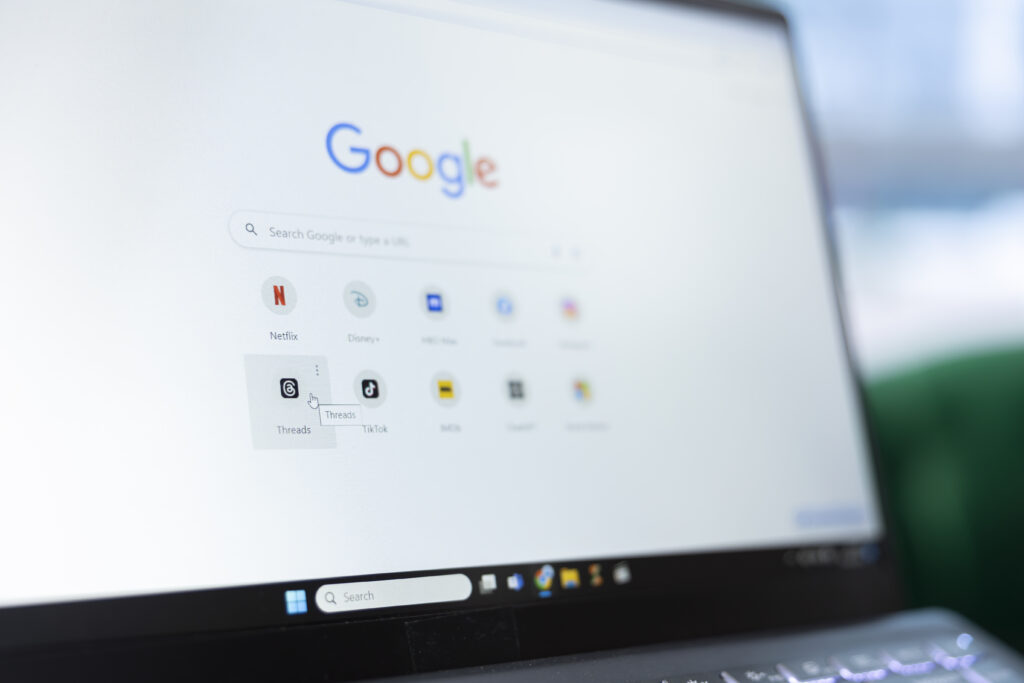
- Visit photos.google.com and sign in with your Google account.
- On the left sidebar, click Trash.
- Find the photos you want to bring back.
- Select them and click Restore in the top-right corner.
This will move the selected photos back into your Google Photos library, just as they were before deletion.
Important Tip:
If you can’t find your photos in Trash, it means one of the following:
- They were deleted over 60 days ago.
- The Trash was manually emptied.
- You deleted them while logged into another Google account.
Always double-check that you’re signed into the correct Google account before giving up.
Step 2: Check Archived Photos
Sometimes photos disappear not because they were deleted, but because they were accidentally archived. The Archive feature hides images from your main library but keeps them safe.
To check:
- Open the Google Photos app.
- Tap Library.
- Tap Archive.
If you find your missing photos there, simply select them and choose Unarchive to bring them back to the main photo feed.
Step 3: Check Other Devices or Accounts
Many users have multiple Google accounts or devices. If you’re not seeing your photos:
- Check the Google Photos app on your other phone or tablet.
- Try logging into all your Google accounts (personal, work, school, etc.) on photos.google.com.
- Sometimes photos are backed up to a different account without realizing it.
If you had backup enabled on multiple devices, your photo might still exist on another one.
Step 4: Check Google Drive and Device Backup
Even though Google Photos and Google Drive were separated, some older devices or backup settings may still upload photos to Google Drive.
Here’s what you can do:
- Go to drive.google.com.
- Check the Google Photos folder (if you have one).
- If you find any photos, download or move them back to your main gallery.
If your phone had its own local backup (Samsung Cloud, Xiaomi Cloud, or a local file backup), check those apps too. You might still have an older copy of the deleted photo there.
Step 5: Contact Google Support (If It’s Been Less Than 60 Days)

If your photos were deleted recently but you can’t find them in Trash, you can try contacting Google Support. Sometimes, due to sync issues or app bugs, photos don’t appear in Trash but still exist in your account data.
To do this:
- Go to support.google.com/photos.
- Scroll down and select Contact us.
- Explain the issue clearly (for example, “My photos were deleted but not showing in Trash”).
- Provide your account email and details about when the photos were deleted.
While Google cannot always recover permanently deleted files, if the deletion is recent, their team may be able to assist.
Step 6: Use Trusted Recovery Software (If Photos Were Never Backed Up)
If you deleted photos from your phone before they were uploaded to Google Photos, they’re likely gone from the cloud — but might still be on your device’s internal storage (temporarily).
You can try professional data recovery software like:
- DiskDigger (Android)
- EaseUS MobiSaver
- Dr.Fone Data Recovery
These apps can sometimes retrieve photos from phone memory before the space gets overwritten. However, use them carefully and avoid installing random recovery apps that can damage your phone or steal your data.
Best Practice:
Always install recovery apps on a different device or computer to prevent overwriting the deleted files.
Step 7: What to Do If Your Trash Was Emptied
If you manually emptied the Trash in Google Photos, recovery becomes difficult. In that case:
- Double-check other backup platforms (Drive, iCloud, Dropbox, OneDrive, etc.).
- Look for automatic folder backups on your phone’s storage.
- Some Android phones store thumbnails or cached versions of images in folders like DCIM/.thumbnails — they won’t be full quality, but may help you identify or partially restore images.
Step 8: Prevent Losing Photos Again
The best way to deal with photo loss is to make sure it never happens again. Here’s how:
- Keep Backup & Sync Always On
- Open Google Photos > Settings > Backup & Sync.
- Make sure it’s turned on and linked to the right account.
- Use Multiple Backups
- Besides Google Photos, back up your photos to your computer or another cloud service.
- Use an external hard drive or a USB stick as a secondary backup.
- Review Your Trash Regularly
- Check your Trash every few weeks before it’s automatically cleared.
- You might find accidentally deleted photos that you can still restore.
- Organize Your Photos
- Use albums and folders to manage your photos.
- This makes it easier to find what’s missing or accidentally deleted.
- Be Careful When Freeing Up Space
- When using the “Free up space” feature in Google Photos, make sure those files are safely backed up before confirming deletion.
Common Questions
1. Can I recover photos deleted more than 60 days ago?
Unfortunately, once 60 days pass, deleted photos are permanently removed from Google’s servers. The only chance of recovery would be through a local backup or a recovery tool.
2. I deleted photos from my phone’s gallery, but not from Google Photos. Are they safe?
Yes, as long as they were backed up to Google Photos before deletion. You can verify this by checking if the photo still appears on photos.google.com.
3. What if I delete a photo from Google Photos but it’s still on my phone?
If you delete it only from the app but not from your phone’s gallery (and backup was off), the local copy will remain. But if backup was on, the deletion syncs across all devices.
4. Are there any hidden folders where Google Photos stores deleted files?
No. Once photos leave Trash or Bin, they are completely deleted from the user side. There are no hidden folders that users can access after that.
Final Tips
Recover deleted photos from Google Photos depends entirely on how quickly you act and whether the photos were backed up.
If they’re in Trash, recover deleted photos from Google Photos immediately.
If not, check other accounts, archives, and device backups.
If nothing works, contact Google Support while it’s still recent.
And from now on, make it a habit to keep multiple backups. Losing photos once is painful, but it doesn’t have to happen again if you stay prepared.