
Table of Contents
If your PC gets hot while gaming, you are not alone. Overheating is one of the most common problems gamers face, especially on budget or older systems. You start a game, everything feels fine for a few minutes, and then performance drops, fans get loud, and the system starts lagging or even shutting down.
This is not just annoying. It directly affects your gameplay. When your PC overheats, it slows itself down to protect the hardware. That means lower FPS, stuttering, and inconsistent performance.
The important thing is this. Overheating is fixable in most cases. You do not always need to upgrade your PC. You just need to understand what is causing the heat and fix it properly.
What Happens When Your PC Overheats
Before fixing the problem, you need to understand what is actually happening.
Your CPU and GPU generate heat when running games. This is normal. But when the temperature goes too high, your system activates something called thermal throttling.
Thermal throttling reduces performance to lower the temperature. So your PC slows itself down on purpose to avoid damage.
That is why you notice:
Sudden FPS drops
Game stuttering
Lag spikes
Fans spinning loudly
System freezing or shutting down
If overheating continues for a long time, it can even damage components.
Why Your PC Overheats While Gaming
There is never just one reason. Most of the time, overheating happens because of multiple small issues combined.
Here are the real causes.
Dust Is Blocking Airflow
This is the most common and most ignored problem.
Dust builds up inside your PC over time. It blocks airflow and covers fans, vents, and heatsinks. When airflow is blocked, hot air stays trapped inside.
Your system keeps generating heat but cannot remove it properly.
This is especially common if:
You have never cleaned your PC
You use your PC in a dusty room
You use a laptop on a bed or soft surface
Dust alone can increase temperatures by a huge amount.
More: How Much RAM Do You Need for Gaming in 2026? A Complete Guide for Smooth Gameplay
Poor Airflow Inside the Case
Even if your PC is clean, bad airflow design can still cause overheating.
Your PC needs proper airflow to move hot air out and bring cool air in.
If your case has:
Too few fans
Incorrect fan direction
Blocked air vents
then heat will build up quickly.
Many budget PC builds ignore airflow completely, which leads to overheating during gaming.
High Graphics Settings Are Too Much for Your PC
This is a big one that people do not want to accept.
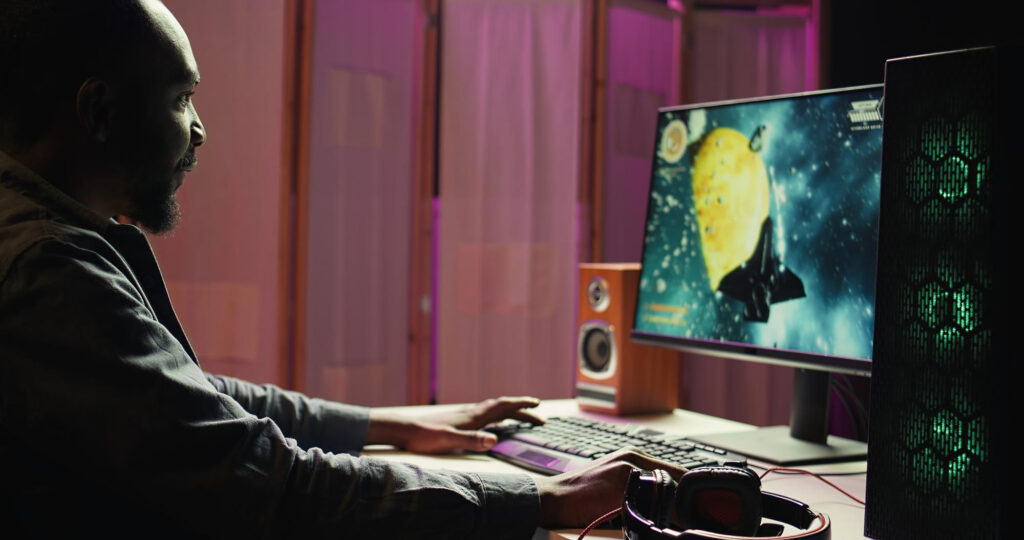
If your PC is weak and you run games on high or ultra settings, your GPU and CPU will work at maximum load all the time.
More load equals more heat.
If your cooling system cannot handle that heat, temperatures rise quickly.
This is very common on low end PCs trying to run modern games.
Old or Dried Thermal Paste
Thermal paste sits between your CPU or GPU and the cooler. It helps transfer heat away from the chip.
Over time, thermal paste dries out and becomes less effective.
When that happens, heat does not transfer properly, and temperatures increase.
This is especially common in:
Old PCs
Laptops used for several years
Systems that have never been serviced
Replacing thermal paste can reduce temperatures significantly.
Laptop Cooling Limitations
If you are gaming on a laptop, overheating is even more common.
Laptops have limited space for airflow. The cooling system is compact, and heat builds up faster compared to desktop PCs.
Gaming laptops also push hardware very hard, which increases heat output.
If you are using a laptop, overheating is not just possible. It is expected unless you manage it properly.
Background Processes Increasing Load
Sometimes your PC is overheating not just because of the game, but because of everything running in the background.
If your system is running:
Browsers with many tabs
Software updates
Recording tools
Background apps
then your CPU is doing more work than necessary.
More work means more heat.
Poor Room Temperature
This is simple but important.
If your room is already hot, your PC cannot cool down effectively.
Cooling systems depend on the surrounding air. If the air is warm, cooling becomes less efficient.
This is why overheating gets worse in summer or in rooms without proper ventilation.
More: Best Graphics Settings for GTA V on Low End PC for Smooth Gameplay in 2026
How to Fix PC Overheating While Gaming
Now let’s fix it properly. No theory. Just practical steps that actually work.
Clean Your PC Properly
If you have not cleaned your PC, start here.
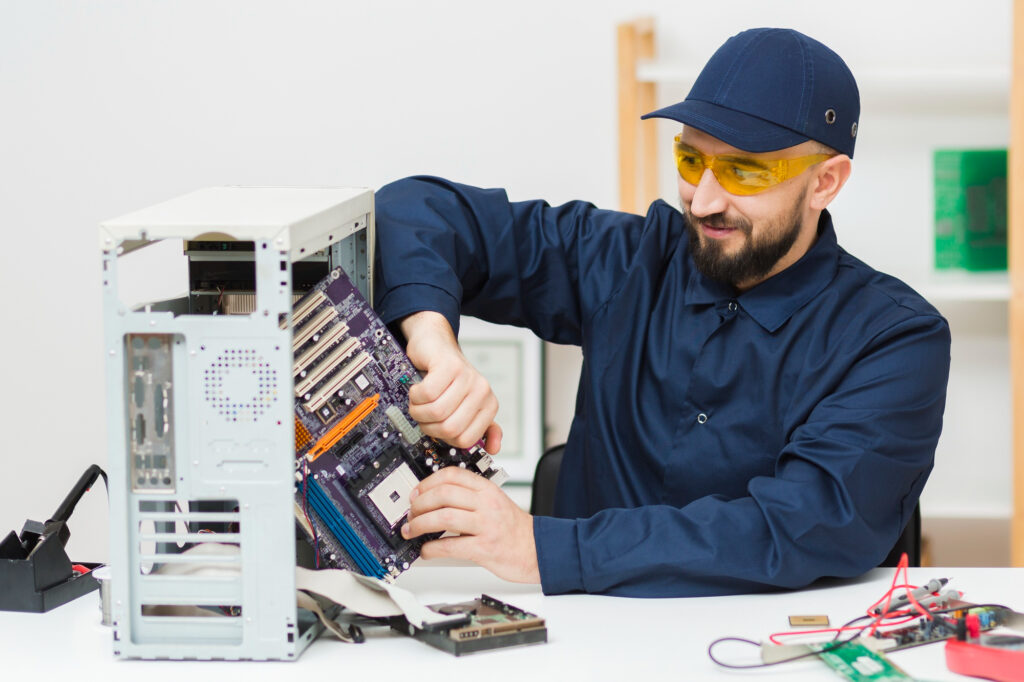
Open your PC case and remove dust from:
Fans
Air vents
Heatsinks
Power supply
Use compressed air if possible. If not, use a soft brush carefully.
If you are using a laptop, clean the vents and fans as much as you can.
This alone can reduce temperatures by a noticeable amount.
Improve Airflow
Your PC needs proper airflow. That means cool air comes in and hot air goes out.
Make sure:
Front fans pull air in
Back and top fans push air out
Nothing is blocking air vents
If your case has only one fan, consider adding another.
Better airflow directly reduces heat.
Lower Your Graphics Settings
Stop forcing your PC to run games it cannot handle.
Lower settings like:
Shadows
Reflections
Texture quality
View distance
This reduces load on your GPU and CPU, which reduces heat.
You may lose some visual quality, but your game will run smoother and cooler.
Limit Your FPS
Running unlimited FPS puts unnecessary pressure on your system.
If your PC is constantly pushing maximum performance, it generates more heat.
Set a frame rate limit that your system can handle consistently.
For example:
Lock at 60 FPS instead of pushing 100 plus
Use in game FPS limiter or software tools
Stable performance is better than unstable high FPS.
Replace Thermal Paste
If your PC is old and has never been serviced, thermal paste might be the problem.
Replacing thermal paste helps transfer heat more efficiently from CPU and GPU to the cooler.
This step requires basic technical knowledge, but it is very effective.
If you are not comfortable doing it yourself, get it done by a technician.
Use a Cooling Pad for Laptops
If you game on a laptop, get a cooling pad.
A cooling pad improves airflow under the laptop and helps reduce temperature.
Also avoid placing your laptop on soft surfaces like beds or pillows.
Always use a flat surface.
Close Background Programs
Before starting a game, close everything you do not need.
Check task manager and shut down:
Browsers
Launchers
Unnecessary apps
Freeing CPU and RAM reduces workload and heat.
More: 12 Important Things Every New Gamer Should Know Before Starting
Adjust Power Settings
Your PC may be running at full power even when not needed.
Switch to balanced or optimized power settings if your system is overheating.
This reduces unnecessary stress on hardware.
Keep Your Room Cool
Simple but effective.
If your room is hot, your PC will be hot.
Improve airflow in your room or use a fan.
Even a small change in room temperature can help your PC cool down better.
When You Should Consider Upgrading
If you have tried everything and your PC still overheats, then your hardware might be the limitation.
In that case, consider:
Better CPU cooler
More case fans
Upgrading your case
Switching to SSD if still using HDD
You do not always need a full upgrade. Small changes can make a big difference.
Final Thoughts
Overheating is one of the biggest reasons behind poor gaming performance.
It causes lag, FPS drops, and unstable gameplay. But the truth is, most overheating problems are fixable without spending a lot of money.
Cleaning your PC, improving airflow, lowering settings, and managing background tasks can solve most issues.
Do not ignore overheating. It does not just affect performance. It can damage your hardware over time.
Fix the problem early, and your PC will run smoother, quieter, and more reliably during gaming.