

Table of Contents
Game freezing is one of the most frustrating problems you can face while gaming. Everything runs fine, and suddenly the game stops. Sometimes it recovers after a few seconds, and sometimes it crashes completely. This breaks immersion and can ruin competitive matches.
Many players assume their PC is simply not powerful enough, but random freezing is not always caused by weak hardware. In many cases, the issue comes from software problems, poor settings, overheating, or background processes.
The good news is that most freezing issues can be fixed without upgrading your PC. You just need to understand what is causing the problem and apply the right solution.
What Does Game Freezing Actually Mean
Game freezing happens when your system temporarily stops responding while running a game. Unlike low FPS or stuttering, freezing is more sudden and noticeable.
There are two common types:
Short freezes where the game pauses for a few seconds and continues
Complete freezes where the game stops and needs to be closed
This usually happens when your system cannot process something fast enough, such as loading game data or handling multiple tasks at once.
Why Games Freeze Randomly
There is no single reason behind this problem. It is usually a combination of issues. Understanding the main causes will help you fix it properly.
Not Enough RAM
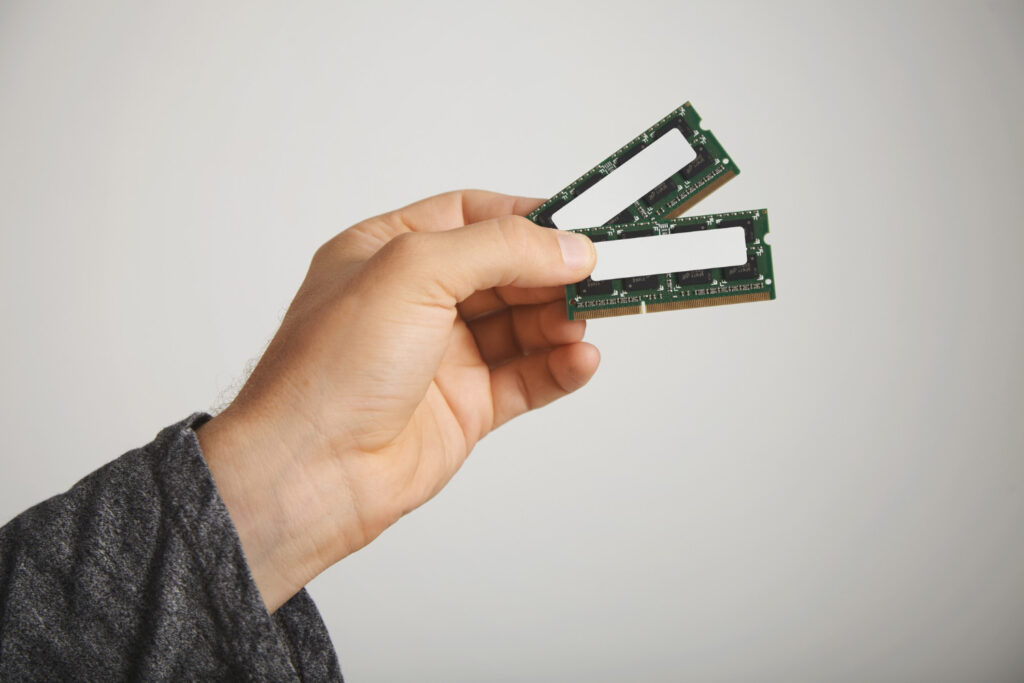
RAM plays a major role in gaming. When your system runs out of memory, it struggles to keep the game running smoothly.
When RAM is full, the system starts using storage as temporary memory. This process is much slower and often causes freezing.
This is very common on low end PCs or when too many programs are running in the background.
High CPU or GPU Usage
When your CPU or GPU is pushed to its limits, it can struggle to handle sudden spikes in workload.
This often happens in:
Open world games
Busy combat scenes
Large multiplayer matches
If your system cannot keep up, the game may freeze for a moment.
Background Programs Interfering
Many programs run in the background without you noticing. These include:
Browsers
Game launchers
Antivirus scans
Software updates
Even small programs can use enough resources to cause freezing on weaker systems.
More: Why Your PC Overheats While Gaming and How to Fix It in 2026
Overheating Hardware
Heat is a major reason for sudden performance problems.
When your CPU or GPU gets too hot, it slows down to protect itself. This causes sudden freezes and lag spikes.
Overheating is more common in:
Dusty PCs
Laptops with poor airflow
Hot room environments
Outdated or Broken Drivers
Drivers help your hardware communicate with games. If your graphics driver is outdated or corrupted, it can cause freezing issues.
Newer games often require updated drivers to run properly.
Slow Storage Drives
If your game is installed on a slow hard drive, it may struggle to load data quickly.
This is especially noticeable in open world games where new areas load constantly.
Slow data loading can cause the game to freeze briefly.
How to Fix Game Freezing Step by Step
Now let’s get to the actual solutions. These are practical steps that work on most systems.
Close All Unnecessary Background Programs
Before launching a game, check what is running on your system.
Close:
Browsers with multiple tabs
Unused applications
Download managers
Extra game launchers
This frees up RAM and CPU power.
On low end PCs, this alone can reduce freezing significantly.
Lower Graphics Settings
High graphics settings increase the workload on your system.
If your PC is struggling, reduce settings like:
Shadows
Reflections
View distance
Effects
Lowering these settings reduces the load on your CPU and GPU, making freezing less likely.
Update Graphics Drivers
Always keep your graphics drivers updated.
New drivers often include performance improvements and bug fixes for modern games.
Installing the latest version can solve freezing issues instantly in some cases.
More: How Much RAM Do You Need for Gaming in 2026?
Check Your System Temperature
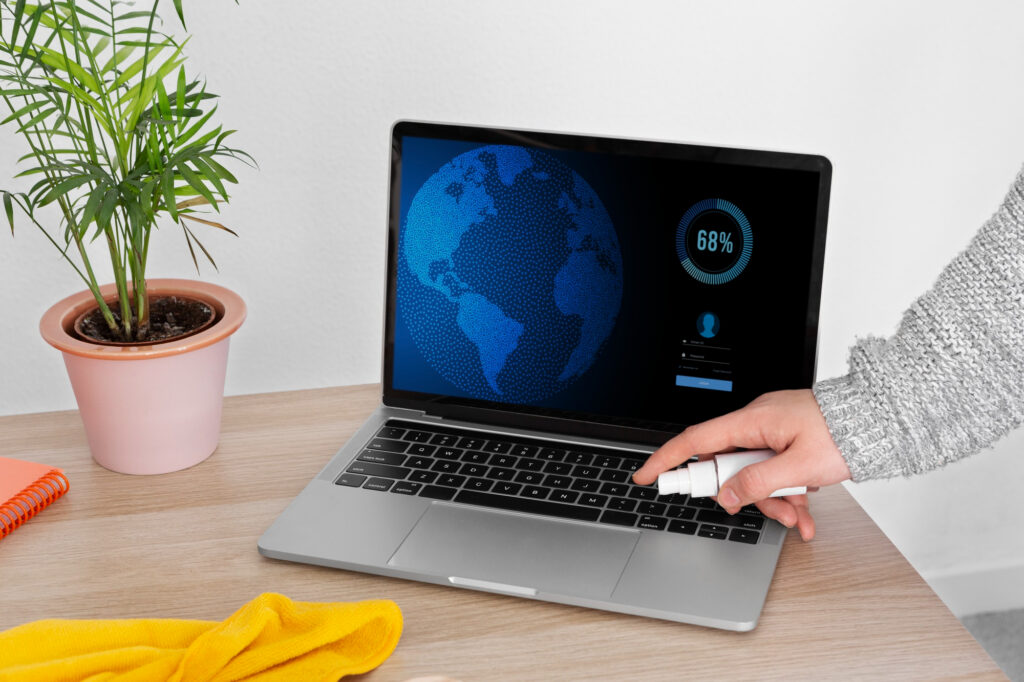
Overheating can cause sudden freezing.
Monitor your CPU and GPU temperatures while gaming.
If temperatures are too high:
Clean dust from fans
Improve airflow
Use a cooling pad for laptops
Keeping your system cool improves stability.
Use Fullscreen Mode
Running games in fullscreen mode usually provides better performance than windowed modes.
Fullscreen allows the game to use system resources more efficiently.
Switching to fullscreen can reduce freezing and improve smoothness.
Move Games to SSD
If your game is installed on a hard drive, consider moving it to a solid state drive.
SSDs are much faster and reduce loading delays.
This is especially useful for open world games that constantly load new data.
Increase Virtual Memory
If your system has low RAM, increasing virtual memory can help.
Virtual memory uses storage space as extra memory.
While it is slower than real RAM, it can prevent freezing caused by memory shortages.
Disable Startup Programs
Many programs start automatically when your computer boots.
These programs continue running in the background and use system resources.
Disable unnecessary startup programs to free up memory and CPU power.
Restart Your PC Regularly
This sounds simple, but it works.
Restarting your PC clears temporary memory usage and resets background processes.
If your system has been running for a long time, a restart can improve performance.
Common Mistakes That Cause Freezing
Many players unknowingly make mistakes that lead to freezing.
Running Too Many Programs
Trying to game while running multiple applications is a common mistake.
Low end PCs cannot handle heavy multitasking during gaming.
Ignoring Temperature Issues
Some players ignore overheating signs like loud fans or high temperatures.
This leads to long term performance problems.
Using Maximum Settings
Running games on high or ultra settings on weak hardware will almost always cause issues.
When You Should Upgrade Your PC
If you have tried all optimizations and the problem still exists, your hardware may be the limitation.
Consider upgrading:
RAM for better multitasking
Storage to SSD for faster loading
GPU for better graphics performance
Even small upgrades can make a noticeable difference.
Final Thoughts
Game freezing can ruin your gaming experience, but it is often fixable.
Most of the time, the problem comes from system overload, overheating, or poor optimization.
By closing background programs, lowering settings, updating drivers, and keeping your system clean, you can reduce or eliminate freezing.
You do not always need a powerful PC to enjoy games. You just need to manage your system properly.
With the right adjustments, even a low end PC can deliver a stable and smooth gaming experience.